
Reliable Networking and WiFi Setup for Homes and Offices

Is Your Internet Slow or Unreliable?
Few things are more frustrating than a WiFi connection that constantly drops, slows down, or fails when you need it most. Many people assume the internet provider is the problem when the real issue is the home network itself. Tech Shack provides networking and WiFi setup in the Clemson area to improve coverage, stability, and performance. Whether you’re dealing with dead zones in your house, unreliable connections during video calls, or slow speeds while gaming, a properly configured network can make a major difference.
Situations Where Networking Help Makes a Difference
WiFi Dead Zones Around the House
If certain rooms barely receive a signal, the router may be placed poorly or the home may require additional access points. Network optimization can improve coverage throughout the property.
Slow Speeds Despite a Fast Internet Plan
High-speed internet plans only help if the internal network can support them. Router configuration, updated equipment, and proper placement help achieve better speeds.
Frequent Connection Drops
Interference, outdated routers, and poor configuration can cause devices to disconnect randomly. Network diagnostics help determine the cause.
Gaming or Streaming Performance Issues
Online gaming and streaming require stable connections. Network adjustments help reduce lag and improve reliability.
Common Mistakes That Hurt WiFi Performance
Placing routers in corners or behind large objects.
Using outdated routers that cannot support modern speeds.
Overloading a network with too many devices.
Ignoring interference from nearby electronics.
Using a single router in large homes where multiple access points are needed.
Quick troubleshooting tips
Quick Guidance for Improving WiFi at Home
Move the Router to a Central Location
WiFi signals spread outward from the router. Placing it near the center of the home often improves coverage.
Reduce Interference
Large appliances, metal surfaces, and thick walls can block signals. Adjusting router placement may improve performance.
Upgrade Older Networking Equipment
Older routers may struggle to support modern internet speeds or multiple connected devices.
Use Wired Connections When Possible
For devices like gaming PCs or streaming systems, wired Ethernet connections provide the most stable performance.
Ready to Improve Your Home Network?
Many networking problems can be solved with proper configuration, equipment upgrades, and better placement of networking hardware. Tech Shack helps Clemson homeowners and businesses build networks that actually perform the way they should.
A strong network also makes a big difference for home entertainment. If you're looking to eliminate buffering for a home theater setup, our
home theater installation services pair well with a properly configured network.
What to Expect From Networking Service
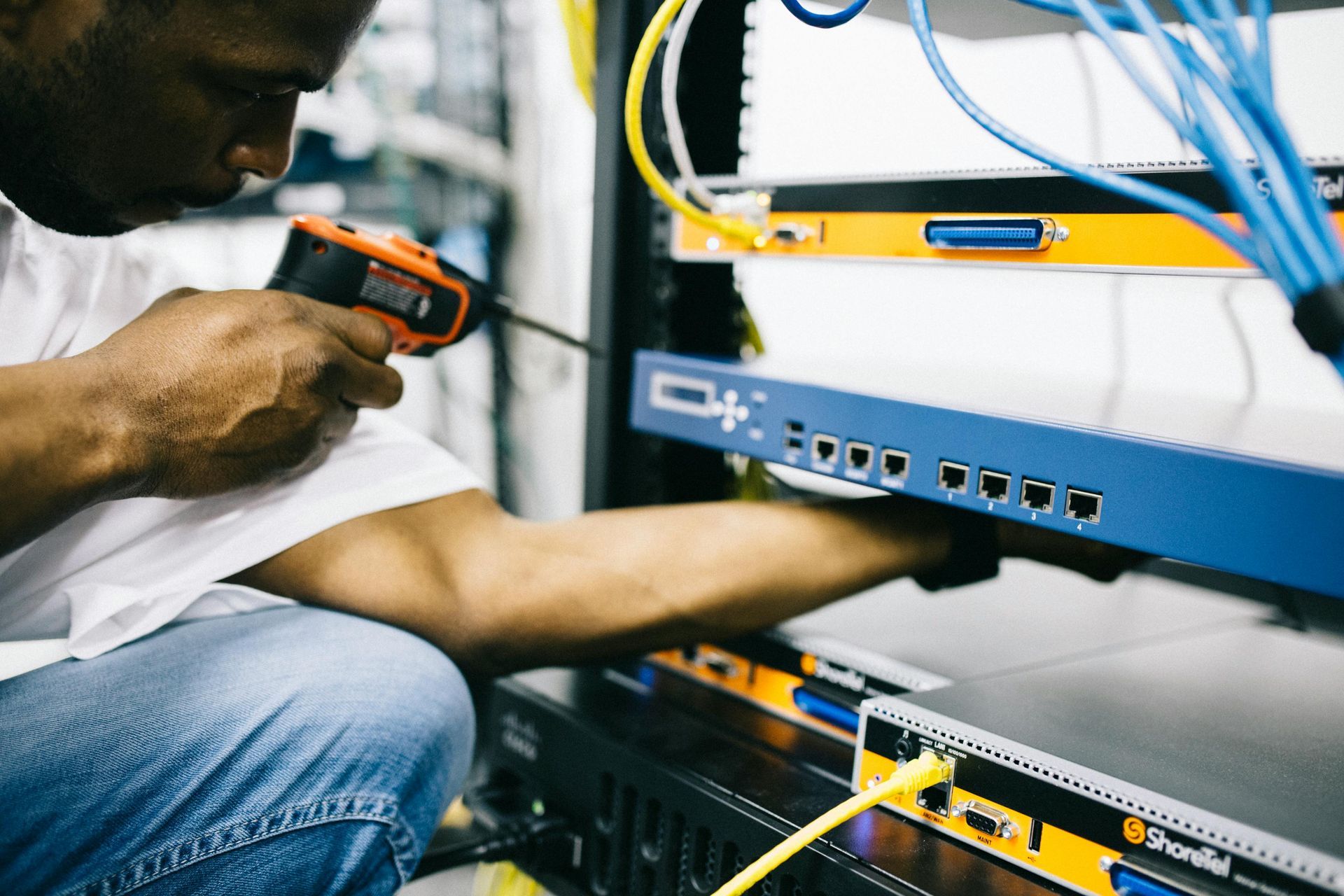
Networking service begins with evaluating the existing internet setup and identifying weak points in the network. This may include testing router placement, signal strength, and device connectivity. Once the issues are identified, improvements can include installing better networking hardware, repositioning equipment, or configuring multiple access points for stronger coverage. The goal is a network that delivers reliable speeds throughout the home or office.
Typical steps include:
- Evaluation of the current network setup.
- Testing signal strength and coverage areas.
- Router configuration or hardware upgrades.
- Final testing to confirm stable performance.
Compare Your Options Clearly
A reliable network often depends on the right equipment and setup.
| Situation | Network Optimization | Leave Current Setup |
|---|---|---|
| WiFi dead zones | Access points improve coverage | Dead zones remain |
| Slow internet speeds | Router upgrades increase performance | Network remains limited |
| Gaming lag or streaming issues | Network tuning improves stability | Issues may continue |
| Home office reliability | Stronger network improves productivity | Connection may remain unstable |
Not sure what’s causing your WiFi problems? A network evaluation can help identify the issue.
Networking & WiFi FAQs
Why is my home WiFi slow even with fast internet?
Slow WiFi is usually caused by router placement, interference from walls or other devices, an outdated router, or too many devices competing for bandwidth. In many cases, repositioning the router or upgrading to a mesh network system resolves the problem.
What is a mesh WiFi system and do I need one?
A mesh WiFi system uses multiple nodes placed around your home to eliminate dead zones and provide consistent coverage throughout. It's especially useful in larger homes, multi-story layouts, or homes with thick walls. Tech Shack can assess your space and recommend the right setup.
Can Tech Shack improve WiFi signal in a specific room?
Yes. We assess your current setup, identify the source of the weak signal, and recommend the most effective fix — whether that's a range extender, mesh node, or a wired access point for the strongest and most reliable connection.
Do you set up networks for home offices or small businesses?
Yes. Tech Shack handles both home office and small business networking including router setup, switch configuration, wired ethernet runs, and WiFi optimization for multiple users and devices.
Build a Network That Works Everywhere in Your Home
Reliable internet is essential for gaming, streaming, work, and everyday connectivity. Tech Shack provides networking and WiFi setup for Clemson homes and businesses that need stable and consistent performance.
A solid network is also the foundation for any smart home system. If you're considering automation alongside your network upgrade, see what we offer on our
smart home automation page.