Gaming Console Repair for PlayStation and Xbox
Is Your Gaming Console Not Working Properly?
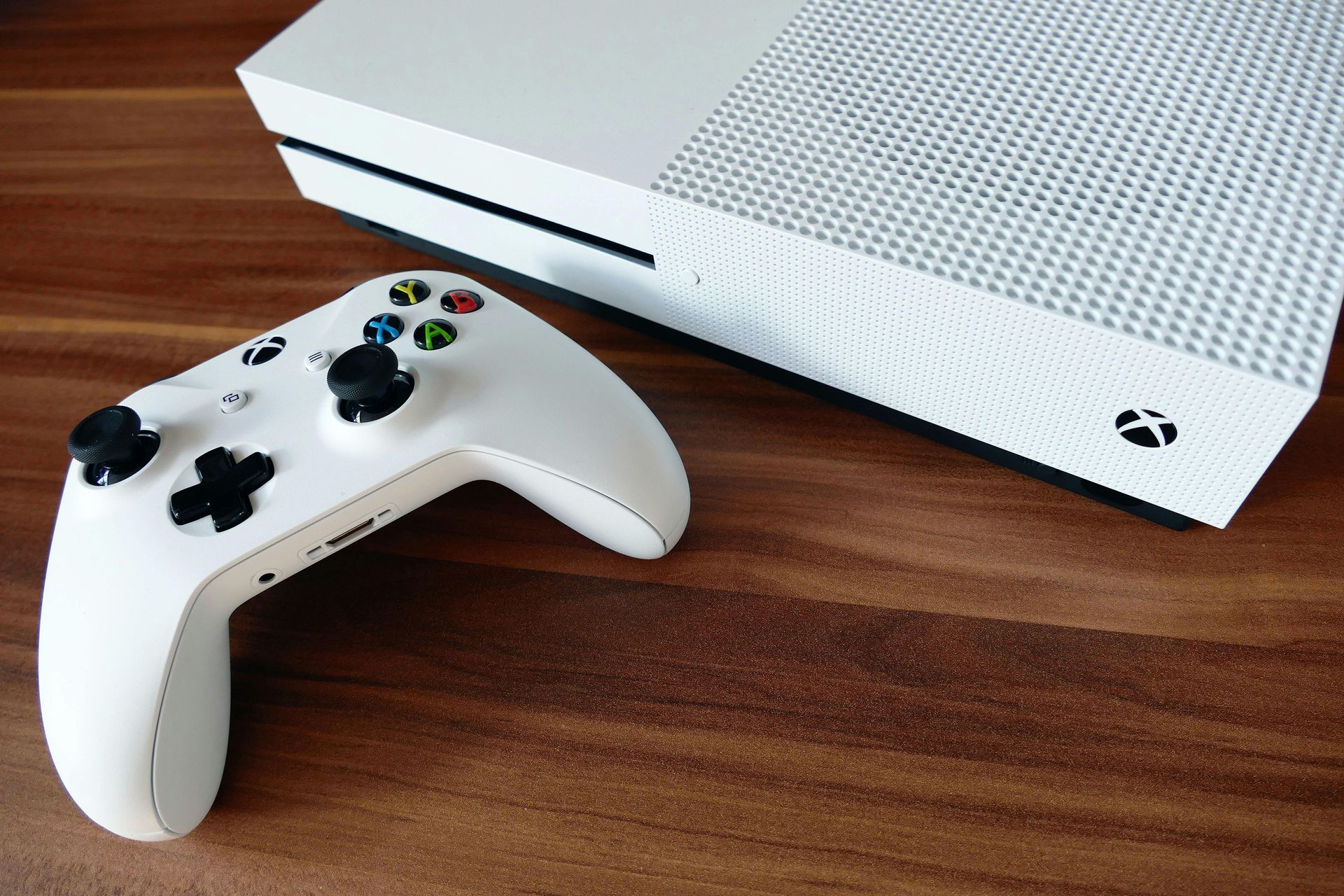
When a gaming console stops working, it can bring your entire setup to a halt. Problems like no video output, sudden shutdowns, or damaged ports often leave people unsure whether the console can even be repaired. Tech Shack provides console repair in the Clemson area, diagnosing hardware issues and restoring gaming systems so they work reliably again. Whether it’s a PlayStation or Xbox, careful diagnostics help identify the exact failure before repairs begin.
Common Console Problems We Fix
Console Has No Video Output
A system that powers on but shows no picture often has an HDMI port issue or internal board damage. Proper testing determines whether the port or another component is causing the problem.
HDMI port damage is one of the most common console repairs we perform. If your console powers on but shows no signal on your TV, that's usually the port — see our dedicated HDMI port repair page for more detail on how that repair works.
Console Randomly Shuts Off
Unexpected shutdowns can come from overheating, failing power supplies, or internal hardware faults. Diagnostics isolate the issue so the console can run normally again.
If you're not sure what's wrong with your console, we recommend starting with a
console diagnostic before committing to a repair. The diagnostic identifies the exact issue so there are no surprises on cost.
Damaged HDMI Ports
Loose cables, bent connectors, or sudden tugs can damage HDMI ports. Micro-soldering repairs restore the connection so your console displays properly.
Controller Connection Issues
If controllers disconnect frequently or fail to pair, the problem may involve wireless hardware or internal system components. Repairs restore stable connectivity.
Small Console Issues That Often Lead to Bigger Damage
Continuing to use a loose HDMI cable can damage the internal port connection.
Blocking console ventilation can lead to overheating and hardware failure.
Dropping or moving a console while cables are connected can damage internal ports.
Ignoring frequent crashes may allow overheating or power problems to worsen.
Attempting untrained soldering repairs can permanently damage the circuit board.
Quick troubleshooting tips
Quick Guidance for Common Console Problems
If Your Console Has No Video Signal
Try a different HDMI cable and a different TV port first. If the problem continues, the HDMI port or internal connection may need repair.
If Your Console Overheats During Gaming
Make sure vents are not blocked and the console has airflow. Persistent overheating often requires internal cleaning or cooling system repair.
If the Console Powers On but Games Crash
System software corruption or hardware issues may be responsible. Diagnostics determine whether the problem is software-related or internal hardware.
If Controllers Won’t Stay Connected
Check controller batteries and pairing settings first. If the issue persists, the console’s wireless hardware may need repair.
Ready to Have This Handled for You?
When a console stops working, trying random fixes online can quickly become frustrating. Tech Shack repairs gaming consoles for Clemson gamers who want clear diagnostics and reliable repairs.
What to Expect From Start to Finish
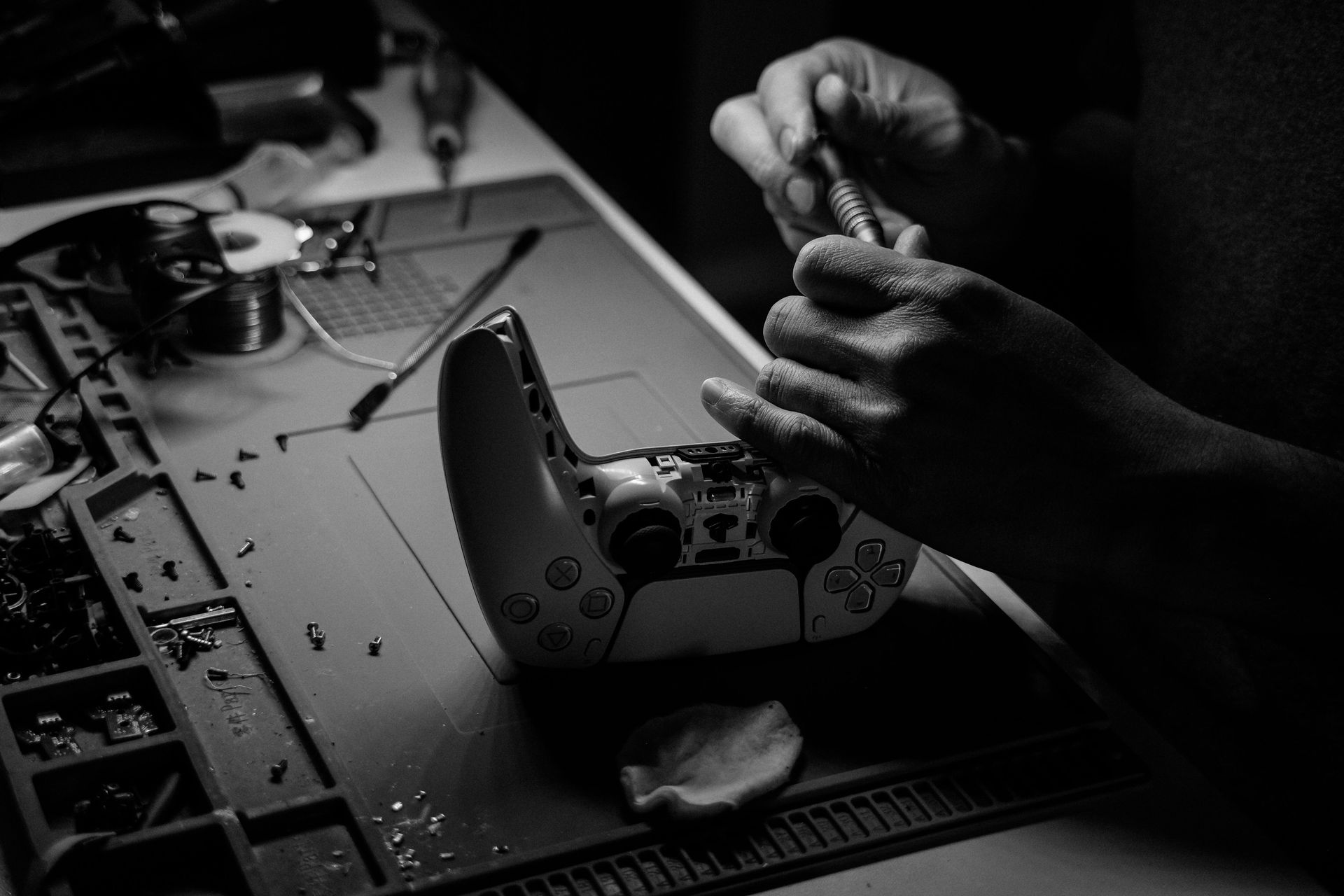
Console repair begins with diagnostics to determine the exact cause of the failure. Once the issue is identified, the repair options are explained clearly so you can decide how to proceed. Depending on the problem, repairs may involve HDMI port replacement, cooling system repair, or internal hardware fixes. After the repair is complete, the console is tested to confirm normal operation.
Typical steps include:
- System inspection and hardware diagnostics.
- Clear explanation of the issue affecting the console.
- Micro-soldering or hardware repair if required.
- Final testing to confirm video output and system stability.
Compare Your Options Clearly
When a console stops working, repair is often more practical than replacing the system.
| Situation | Console Repair | Replacement |
|---|---|---|
| HDMI port damage | Repair restores video output | Replacement requires buying a new console |
| Overheating problems | Cleaning and cooling repairs fix the issue | New console is usually unnecessary |
| Budget considerations | Repair is typically more affordable | New systems require higher investment |
Not sure which option makes sense for your console? Diagnostics help determine the best path forward.
Console Repair FAQs
What gaming consoles does Tech Shack repair?
Tech Shack repairs PlayStation 4, PlayStation 5, Xbox One, Xbox Series X/S, and Nintendo Switch consoles. We specialize in complex repairs including HDMI port replacement, micro-soldering, overheating issues, and hardware failures.
How much does PlayStation or Xbox repair cost?
Console repair costs depend on the specific problem. HDMI port replacements and micro-soldering jobs typically range from $80–$150 depending on the console and extent of the damage. All repairs start with a diagnostic so you know the cost before we proceed.
Can a broken HDMI port on a PS5 be fixed?
Yes. HDMI port replacement on PS5 is one of our most common console repairs. It requires micro-soldering equipment and experience — Tech Shack performs this repair regularly and can usually have your console back within a few days.
Is it worth repairing a gaming console or should I replace it?
For most console repairs, fixing is significantly cheaper than buying a replacement, especially for current-generation systems like the PS5 and Xbox Series X. Unless multiple major components have failed simultaneously, repair is almost always the better value.
Get Back to Gaming Without the Frustration
A broken console shouldn’t keep you from enjoying your games. Tech Shack provides console repair for Clemson gamers who need reliable solutions and clear answers about what went wrong.
We also repair laptops and desktop computers — if you've got a PC or gaming laptop with issues, see our
computer repair services. And if your console isn't worth repairing, bring it in for a
tech trade-in assessment instead.